Manage Webhook Registrations
A Gateway API webhook automatically sends notifications to a registered destination when selected events occur in Magnit VMS. Use webhook registrations to manage the destination, subscribed events, and secret keys for your supplier organization.
Create a Webhook Registration
- Sign in to the Magnit VMS portal as a supplier with API Admin or Group API Admin permission.
- In the left menu, click API Management, and then select the Webhooks tab in API Credential Management.
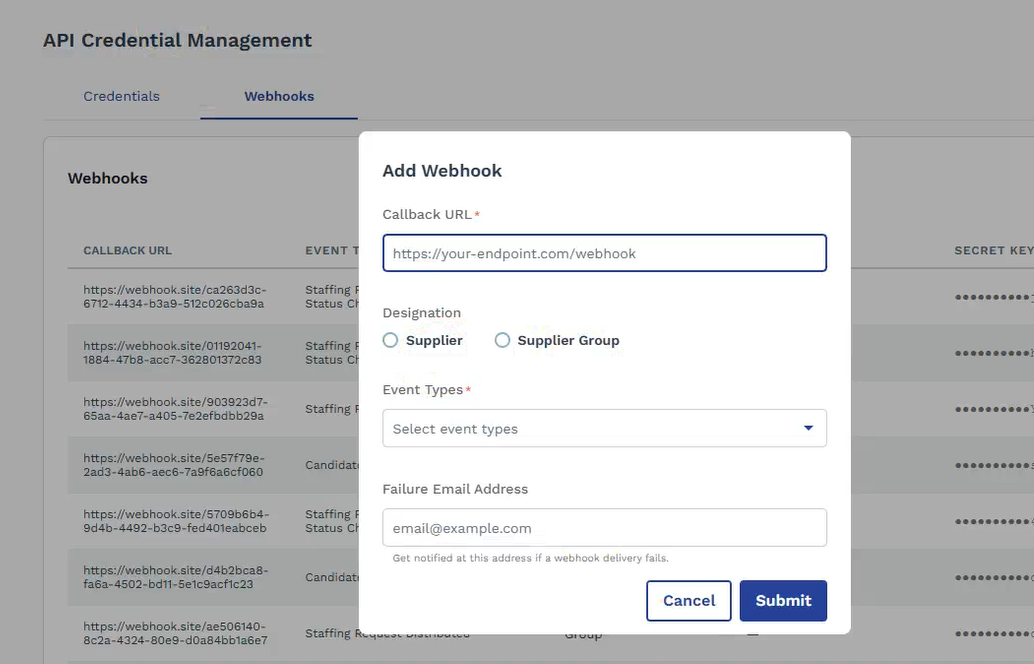
- Click Add Webhook.
- Enter the secure HTTPS callback URL.
- Select Individual Supplier or Supplier Group as the designation type.
- Select the event types that the receiving system should receive.
For example, select
STAFFING_REQUEST_DISTRIBUTED,CANDIDATE_STATUS_CHANGED, orREQUEST_STATUS_CHANGE. - Enter the email address for delivery failure notifications.
- Click Submit.
Copy and securely store the secret key displayed in the confirmation dialog.
Edit a Webhook Registration
- In the left menu, click API Management, and then select the Webhooks tab in API Credential Management.
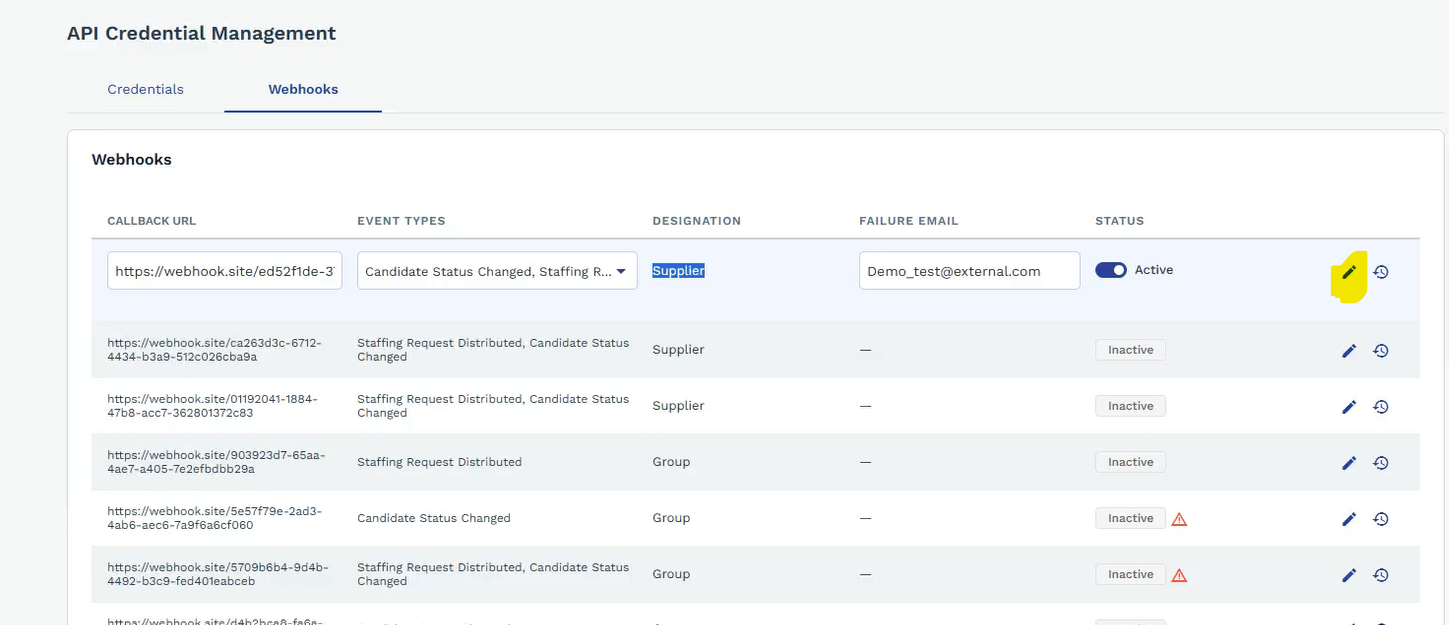
- Find the registration and click Edit.
- Update the callback URL, subscribed events, failure email address, or status, and then click Save.
Note:
Review all changes before saving. Edit one registration at a time when changing a callback URL. Changing a callback URL generates a new secret key.
View Your Secret Key
- On the Webhook Registration List, find the registration created through the API.
- Next to the masked secret key, click the View icon.
- Copy the decrypted plain-text key.
- Click Done or Cancel to mask the value again.
Regenerate the Secret Key
- In the left menu, click API Management, and then select the Webhooks tab in API Credential Management.
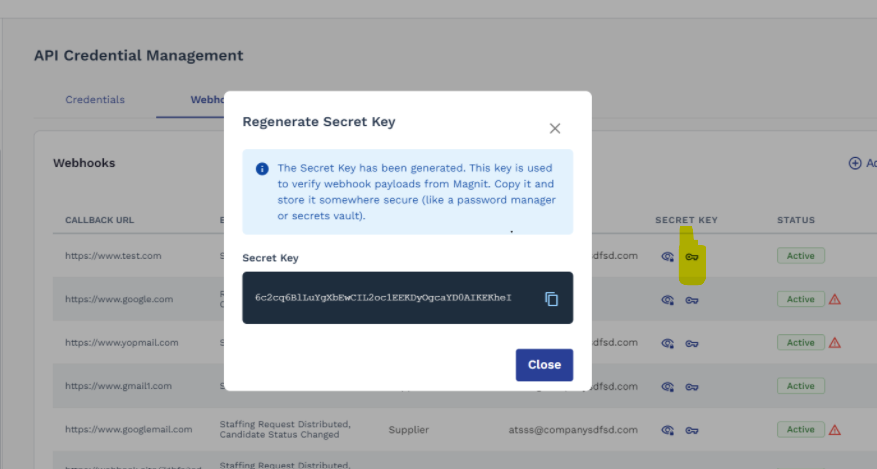
- Find the registration and, in the secret key column, click Regenerate Secret Key.
- Review the warning and click Submit.
- Copy the new secret key from the dialog and immediately update the receiving system.
Note:
Regenerating the key invalidates the previous key. Notifications can fail verification until the receiving system is updated. Never share a secret key in email, chat, or screenshots.
View Change History
- In the left menu, click API Management, and then select the Webhooks tab in API Credential Management.
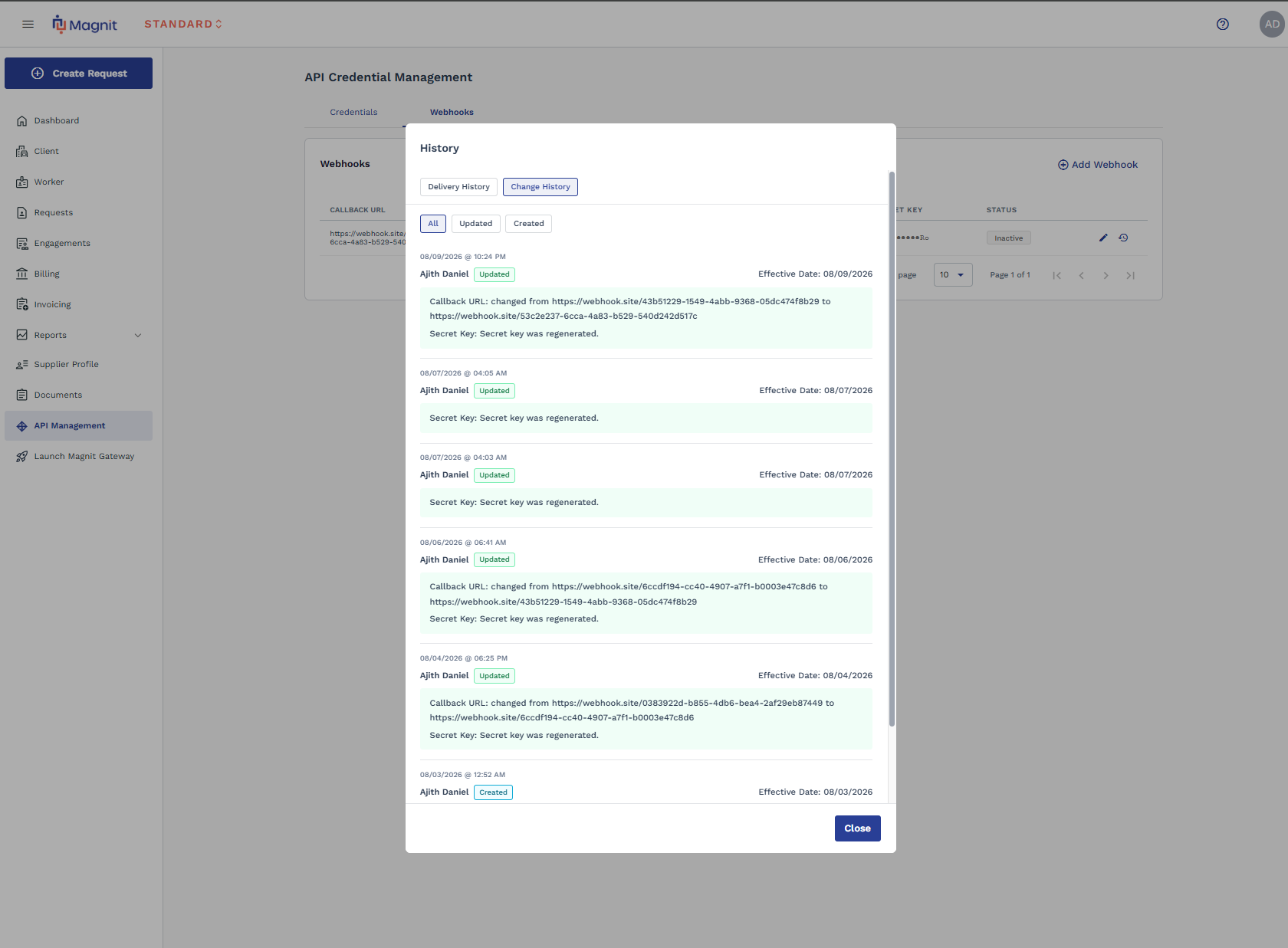
- Find the registration, click the History icon, and then click the Change History tab.
- Review the recorded changes.
The history can include registration creation, callback URL, event, status, and failure-email changes, as well as secret key regeneration.
View Delivery History
- In the left menu, click API Management, and then select the Webhooks tab in API Credential Management.
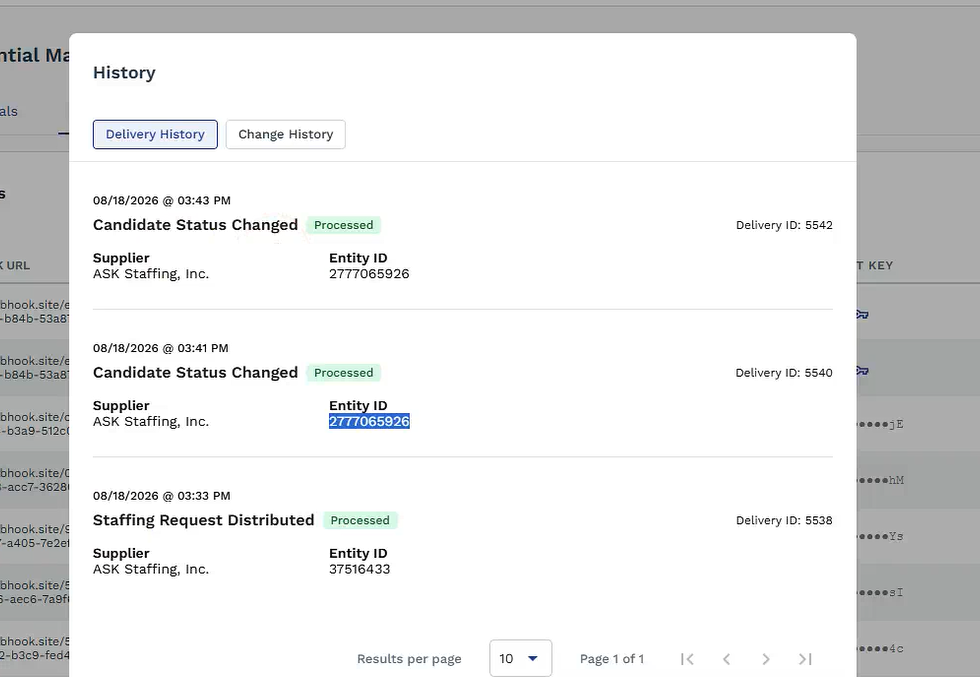
- Find the registration, click the History icon, and then click the Delivery History tab.
- Review the event name, status, delivery date and time, delivery ID, supplier name, entity ID, and failure reason.
- For a failed notification, click Replay and review the new delivery result.
Note:
If a notification fails, confirm that the receiving system is available and that the callback URL is correct.