SOW Template (New): Redlining and E-Signature
Note:
This is the Wand2 rebuild of the legacy redlining feature. For the classic experience, see Edit a Document and Redline a Document in the VMS.
Note:
Prerequisites: at least one Active SOW Template must exist for the client (), and the requisition workflow's SOW & Questionnaire section must have a template selected and Use Negotiation and Redlining on SOW enabled. To use e-signature, Allow eSigning of SOW Contracts must also be enabled.
- Open the engagement created from the approved Project requisition, and navigate to the SOW Document tab.
-
Under Redline Participants, click Add, select the required Manager and Service Provider participants, and click Add Participant.
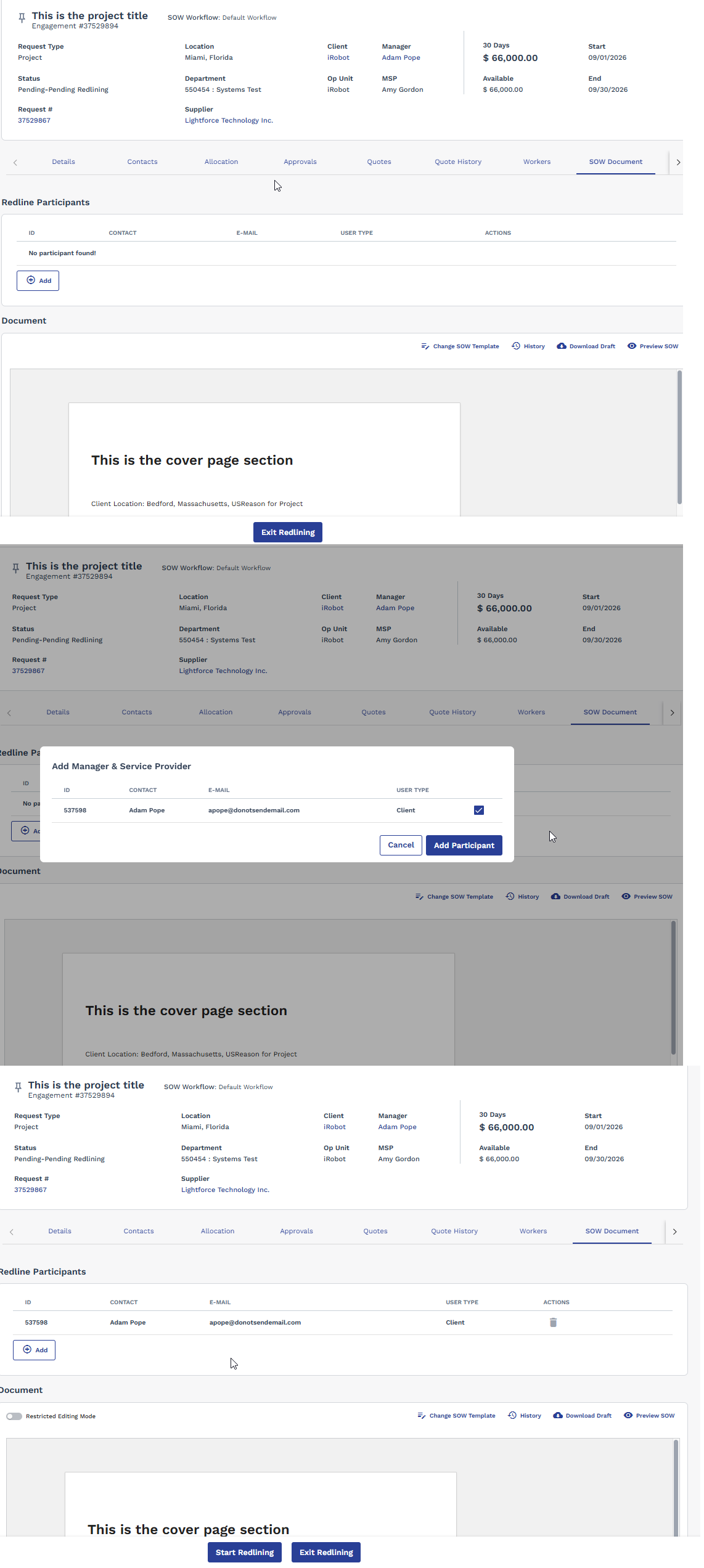
SOW Document tab: adding a Manager/Service Provider redline participant, and the resulting Redline Participants list.
-
Click Start Redlining.
A confirmation banner shows that the redlining session has started for all participants.
-
Click Edit Contract to make edits in the document editor, then click Save.
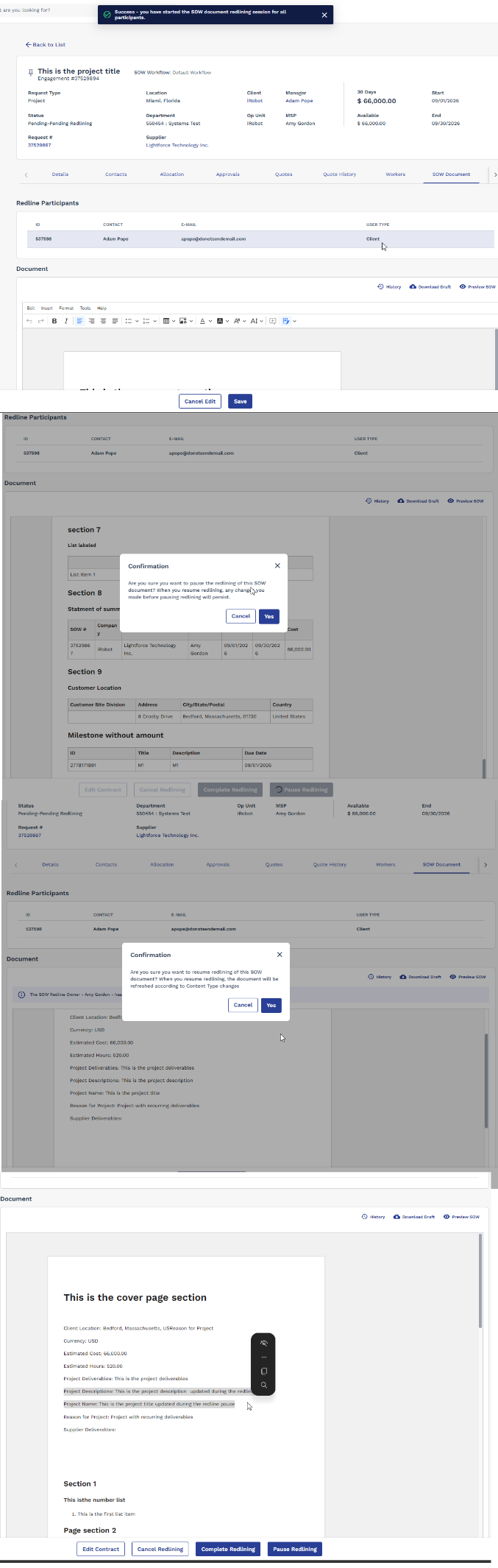
Editing the document, the Pause/Resume Redlining confirmation prompts, and the resulting document showing content updated during the redline pause.
-
Optionally, click Pause Redlining to temporarily halt the session, or Resume Redlining to continue it.
Note:Any changes you made before pausing persist. Resuming refreshes the document according to any Content Type changes made since it was paused.
- Once negotiation is complete, click Complete Redlining.
-
To collect signatures, click Route for E-Sign.
The system starts the signature workflow using the signers and signing sequence configured on the SOW template. Signatories receive and complete their signatures through Adobe Sign. A scheduled synchronization process updates signature statuses back into the system.
-
After all required signatures are completed, the redlining process is marked complete and the engagement status changes to Filled.
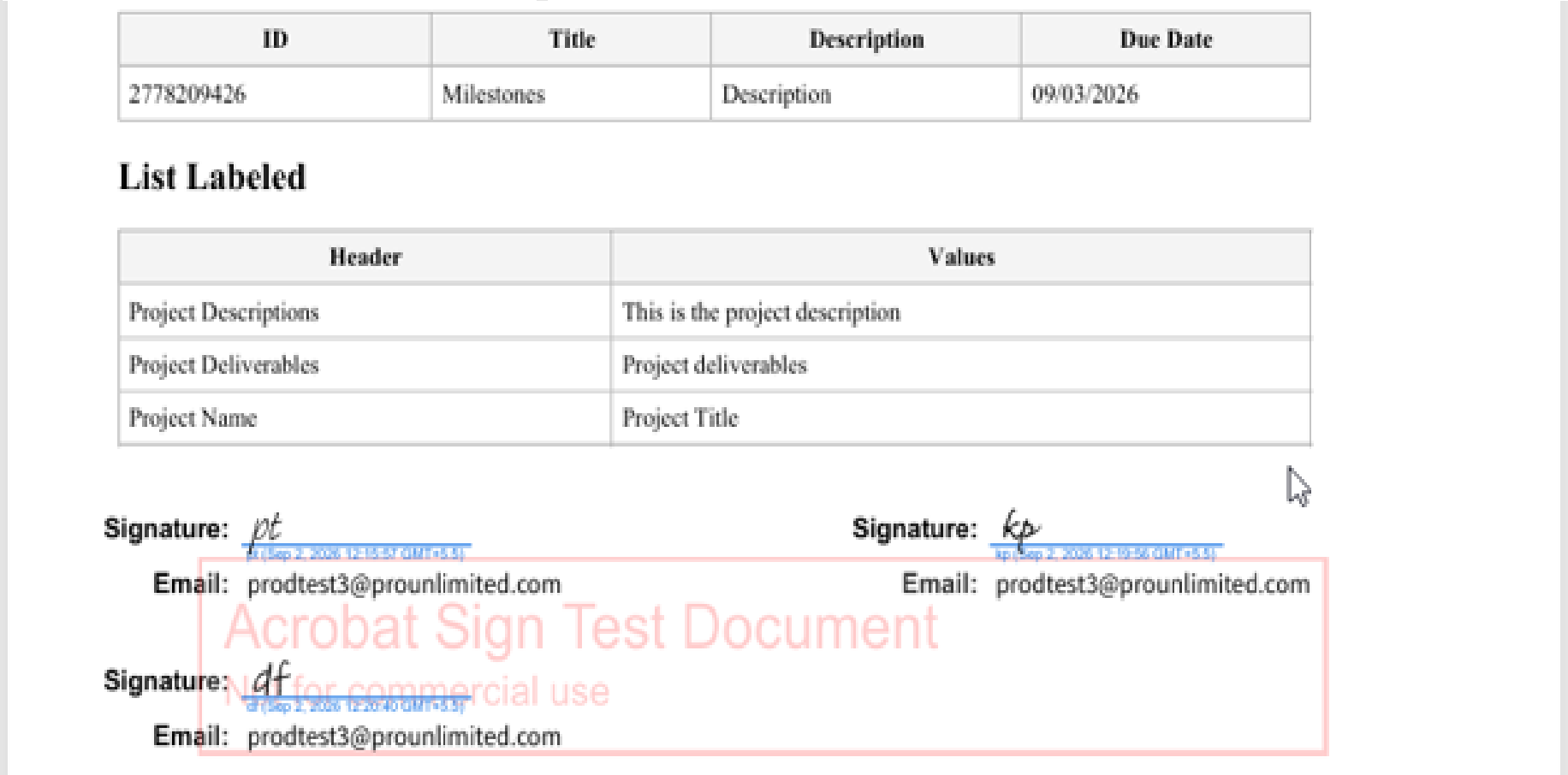
Completed SOW document showing the Content Type field values and the collected Adobe Sign signatures.
Note:
This workflow is derived from the underlying redline event states and represents the intended lifecycle; validation of all user-accessible paths was confirmed primarily for Wand2.