Extension Workflow
The Extension Workflow automates the extension of engagements that are approaching their end date.
A daily background job identifies eligible engagements, calculates a proposed new end date, checks that date against Length of Stay and onboarding compliance limits, and routes the extension to the client manager or to the MSP for review. Without the workflow, each extension must be initiated and processed manually.
The workflow is configured per country and can be refined per job category. It is disabled by default.
Configuring the Extension Workflow
Configuration is set at two levels. Job category rules take precedence, and the country settings act as the fallback for any engagement without an active job category rule.
Country level
Navigate to Configuration > Client Info > [Country] > Extensions. The Extension Workflow section contains the following settings.
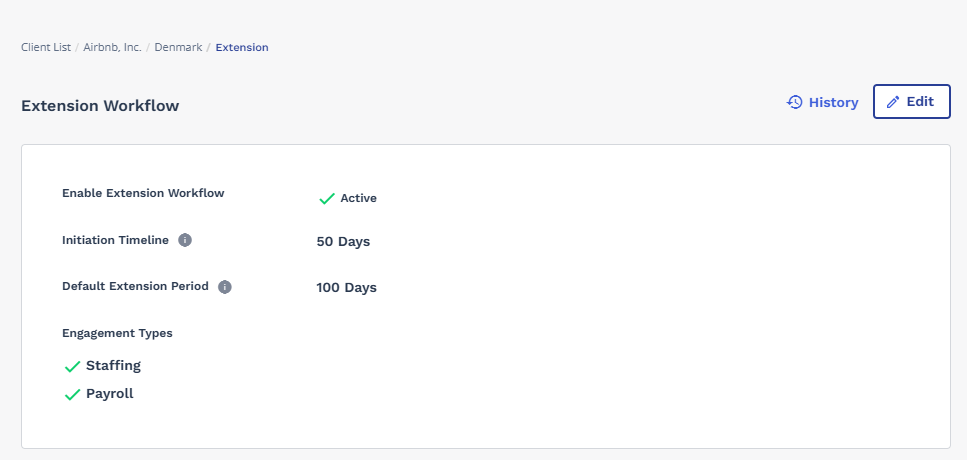
| Setting | Description |
|---|---|
| Enable Extension Workflow | Turns extension automation on for the country. When it is off, no engagement in the country is selected. |
| Initiation Timeline | The number of days before the engagement end date at which the daily job starts the workflow. |
| Default Extension Period | The number of days added to the current end date to calculate the proposed end date. |
| Engagement Types | Staffing, Payroll, or both. Only the selected types are selected. |
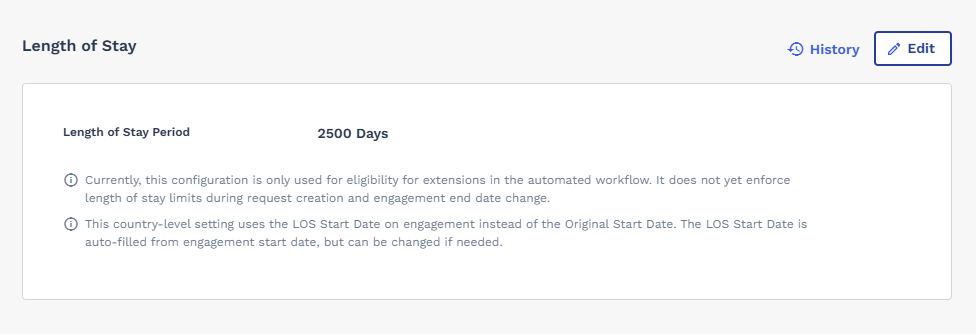
The Length of Stay section, directly below, defines the maximum tenure permitted in the country. It is optional.
Job category level
The Extension Rules for Job Categories section defines rules for individual job categories within a country. Each rule specifies the job category, an initiation timeline, a default extension period, an optional length of stay, and an active flag.
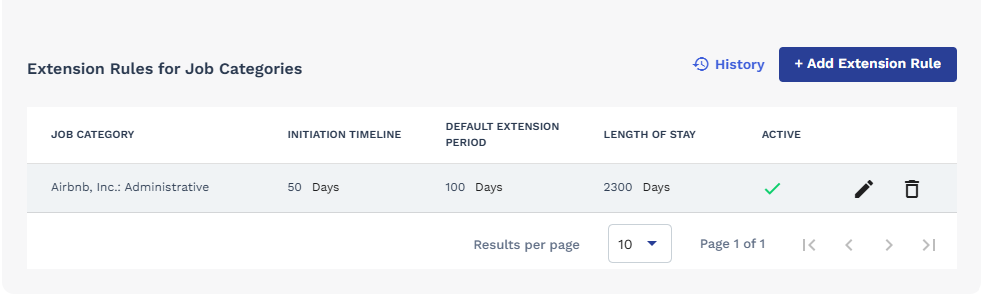
A rule applies only while it is active. Where a rule is inactive, or no rule exists for the engagement's job category, the country settings apply instead. Only one rule can be created per job category per country.
Onboarding compliance items
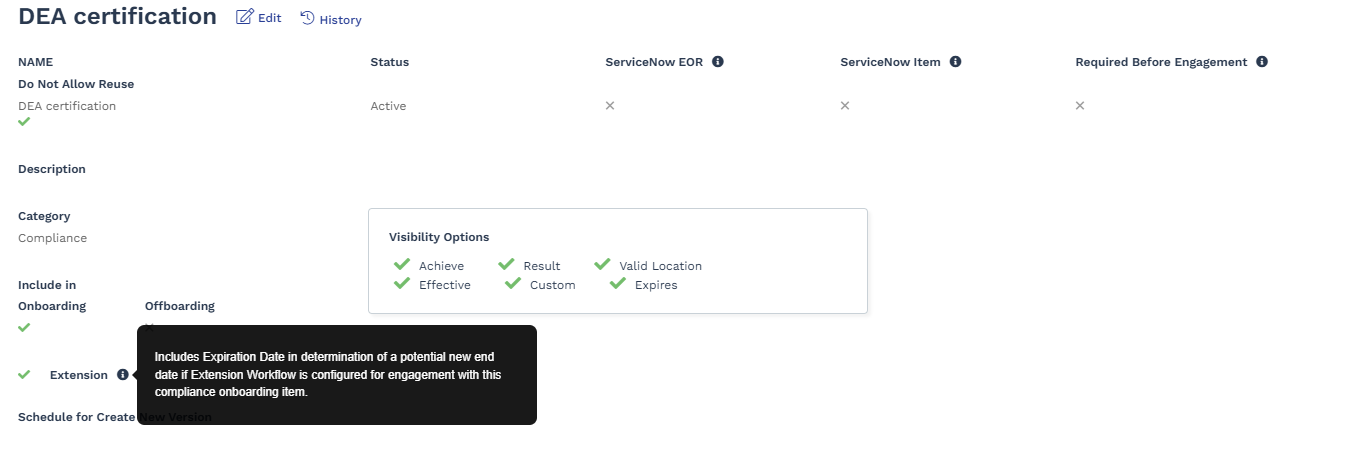
An Extension check box on the onboarding compliance item configuration page flags that item for the extension workflow. Where an item is flagged and the worker holds it, its expiry date is checked before a proposed end date is generated. Items that are not flagged, or that the worker does not hold, are ignored.
How the proposed end date is calculated
The default extension period is added to the current end date. The result is capped where a limit falls inside the proposed period:
- Where a Length of Stay limit falls before the proposed date, the proposed date is reduced to the LOS limit date. The LOS limit date is calculated from the LOS start date, which defaults to the engagement start date and can be changed in the Extension section of the Approvals tab.
- Where a flagged compliance item expires before the proposed date, the proposed date is reduced to the earliest such expiry date.
Where the limit has already passed, that is, where the LOS limit or compliance expiry falls before the engagement's current end date, no proposed date can be generated. The engagement is routed to the MSP for review instead.
Extension statuses
The extension status is held in the Extension section of the Approvals tab and describes where the engagement sits in the current cycle. It is separate from the engagement status.
| Extension status | Meaning |
|---|---|
| Pending Manager Extension | Routed to the manager and awaiting a decision. |
| Pending MSP Review | The manager confirmed an extension for a payroll worker and the MSP must act. |
| Pending End of Assignment Review | The manager declined the extension and the MSP must confirm or resubmit. |
| Pending LOS Review | Blocked by the Length of Stay limit. The MSP must act. |
| Pending Compliance Review | Blocked by an expired compliance item. The MSP must act. |
| Pending Compliance and LOS Review | Blocked by both. The MSP must act. |
| Pending Confirmation | An approval, supplier acceptance, or work order chain is in progress. |
| Extended | The end date was updated successfully. The cycle is complete. |
| End of Assignment Confirmed | No extension. The end date is confirmed and the cycle is complete. |
| Resubmitted | The MSP resubmitted the engagement. The cycle is closed and a new one begins at the next job run. |
| Cancelled | The cycle was aborted because the end date was edited manually. |
Where to find extensions
Navigate to Dashboard > Follow Up/Monitor > Extensions to view engagements grouped by extension status. You can also use Engagements advanced search to filter by pending extension status reason or extension status.
The Extension section of the engagement Approvals tab displays the current status, proposed end date, Length of Stay limit date, compliance expiry dates, and extension history.
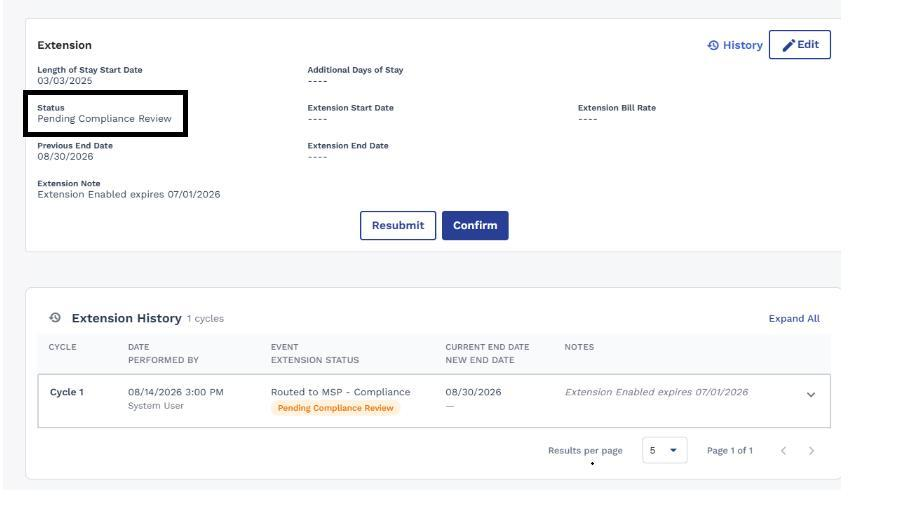
Where the extension status requires MSP action, two actions are available.
| Action | Result |
|---|---|
| Confirm | The engagement ends on its current end date. The extension status is set to End of Assignment Confirmed, Confirmed Est. End Date is selected, and no further extension processing takes place for the engagement. |
| Resubmit | The engagement is returned to the next scheduled job run and re-evaluated. Use this after resolving the blocker, for example, after granting additional days of stay or renewing the compliance item. A confirmation message reminds you that the underlying record must be updated first. The extension status is set to Resubmitted. |
The following statuses require MSP action:
| Extension status | Why the MSP must act |
|---|---|
| Pending LOS Review | The maximum permitted Length of Stay has already been reached or exceeded. |
| Pending Compliance Review | A compliance item flagged for the extension workflow expires before the current end date. |
| Pending Compliance and LOS Review | Both conditions apply. |
| Pending End of Assignment Review | The manager declined the extension. |
| Pending MSP Review | The manager confirmed an extension for a payroll worker. |
Extension history
Every event in a cycle is recorded: the date, the event, the resulting extension status, who performed it, the current and new end dates, and any notes. Events are grouped by cycle with the most recent first.
Notes generated by the application, such as the LOS limit or a compliance expiry, are shown in italics to distinguish them from notes entered by a user.