Maggi Candidate Agent
The Maggi Candidate Agent is used to view and refine candidates submitted for staffing requests. The agent uses generative AI to present insights for candidates based on their resumes. The insights are accessed by hovering over the System Match column in the Candidates tab of a staffing request.
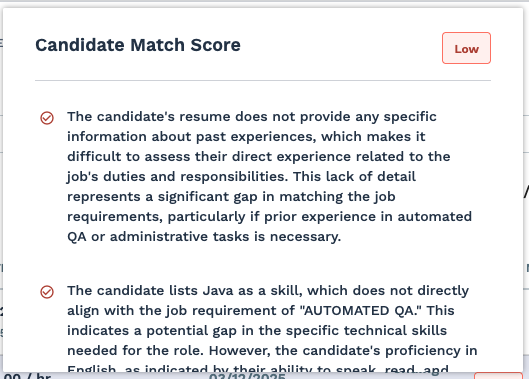
The VMS displays the rating for the candidate based on the requirements and skills requested for the job. Justifications for the rating is generated in plain language, allowing you to understand how the candidate might or might not be a correct choice before taking action (for example, requesting an interview).
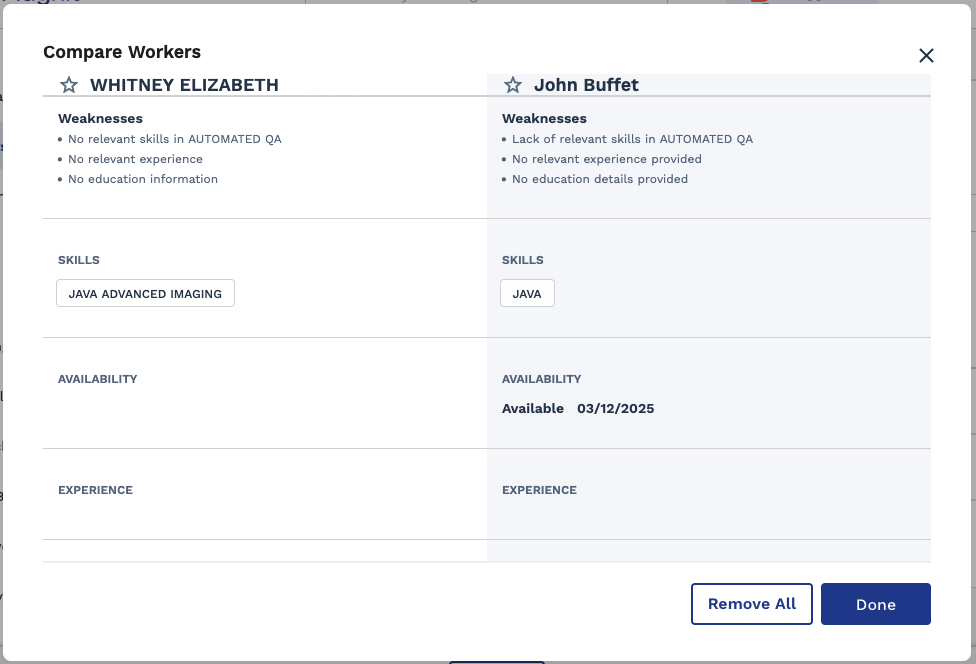
In addition, you can use the agent to compare two submitted candidates. To compare
candidates, select them from the list, and then click  . The agent opens a popup with the comparison insights.
- Excellent - (Maggi Score from 91 to 100) - The candidate’s qualifications strongly align with the job requirements. They are highly likely to succeed in the role.
- Good - (Maggi Score from 76 to 90) - The candidate meets most of the job requirements, with minor gaps. They are a strong contender for the position.
- Fair - (Maggi Score from 46 to 75) - The candidate has potential but demonstrates noticeable gaps in alignment. They may be suitable for consideration in specific circumstances.
- Low - (Maggi Score from 1 to 45) - The candidate’s qualifications do not align with the job requirements, making them unlikely to meet the needs of the role.
Ratings can be manipulated by modifying the emphasis on qualifications or skills. This manipulation can be done in the Refine with Maggi panel, if enabled for the Candidate Agent  including comparing two or more candidates directly. See Refining Candidates with Maggi.
If enabled, the Candidate Agent can validate if a candidate certification's are up to date. If the candidate is missing a certification, the MSP is warned on the Candidates tab, and must follow up to verify the information.
- Supplier Notes attached to the candidate. Notes are used as additional input to the score, providing a more comprehensive assessment for both hiring manager and MSP users.
- Required Skills and Credentials on the staffing request. The Candidate Agent prioritizes these fields when extracting job details, improving match accuracy on requests with strict skill or credential criteria.
- Worksite country eligibility. Scoring only runs for requests whose worksite is in a country approved for Maggi scoring (). If a request’s worksite country isn’t approved, Maggi scores, summaries, and insights aren’t shown for that request. If the worksite is later changed to an approved country, they become available again.
AI Search and Filter Bar
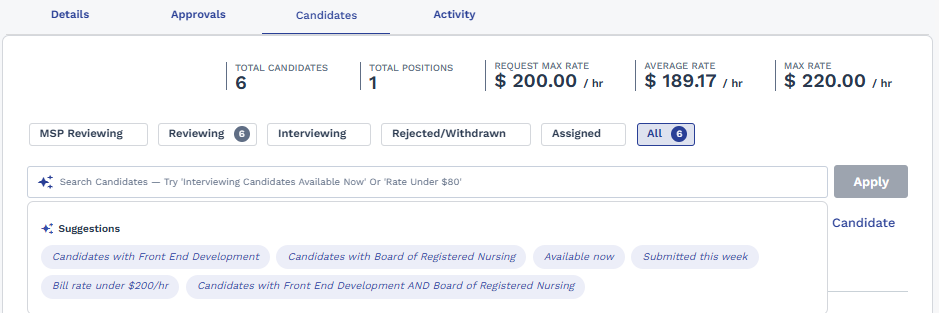
On the Candidates tab of a staffing request, an AI-powered search and filter bar helps you narrow the candidate list using natural language or suggested filters, instead of manually scanning the full list.
- Static suggestions, always shown regardless of the request (for example, "Available now", "Submitted this week").
- Dynamic suggestions, generated from the job description of the current request (for example, "Candidates with Java", "Candidates with PMP", "Candidates with Java AND PMP", "Bill rate under $95/hr"). Dynamic suggestions only appear when Maggi has extracted a matching detail from the job description  there's no generic placeholder if a detail isn't available.
Click a suggestion, or type your own filter criteria, to apply it. A live count (for example, "12 of 45 candidates") next to the candidate table status bar shows how many candidates match your current filters, and updates as you add, change, or remove filters. Filters you've applied are retained even after you open and close a candidate's details popup, and filtered results are paginated for easier review.
Refining Candidates with Maggi
When you navigate to the Candidates tab of an open staffing request, the Maggi chat window automatically opens if there are pending candidates with Maggi scores available for review, with a welcome message and suggested prompts tailored to candidate refinement.
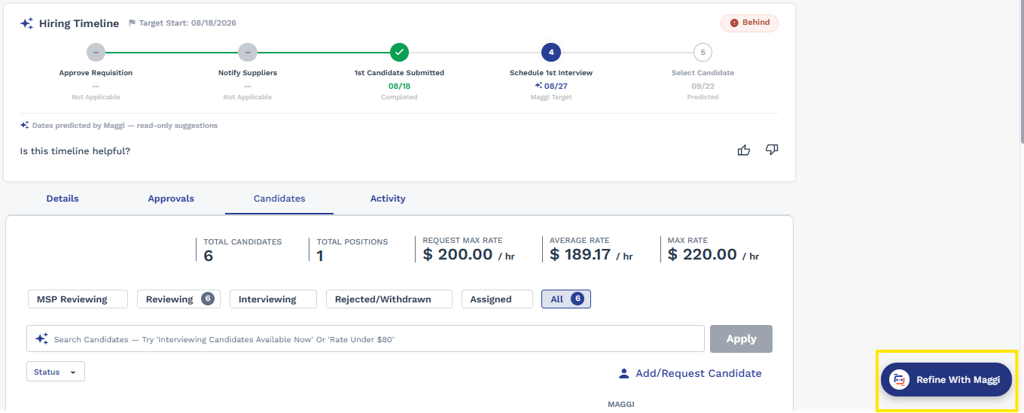
If Candidates Refinement through the Maggi Chat is enabled, click Refine with Maggi in the Candidates tab toolbar to open a dedicated refinement panel anchored to the side of the page. This panel is separate from the general Maggi Knowledge Agent chat, so refinement conversations about a request's candidates don't mix with general questions.
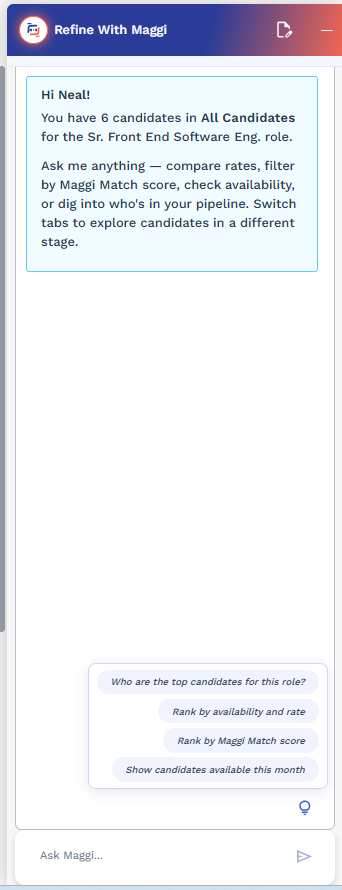
- If you have a previous refinement conversation for this request, it's restored automatically.
- Otherwise, you'll see suggested prompts to get started, such as "Who can start the soonest?", "Show me excellent matches", "Candidates with interviewing status", or "Candidates with MSP Review status". Clicking a suggested prompt inserts the text into the chat input field without sending it, so you can edit the details before submitting.
- Checkboxes appear on each row of the candidate table, letting you select specific candidates to scope Maggi's analysis to. If none are selected, Maggi considers the full candidate list for the request.
- The panel is tab-aware: opening it with no active conversation automatically switches you to the Reviewing tab (Manager/Hiring Manager view) or MSP Pass tab (MSP view), so Maggi scopes its answer to the right candidate pool. If a conversation is already in progress, opening the panel doesn't change your tab, and switching tabs manually doesn't lose your conversation history.
- Ranked table - for requests to rate, rank, or score candidates (for example, "rate candidates by cardiac telemetry experience"). Shows a summary above a table with rank, score (0-100), category (Excellent/Good/Fair/Low), bill rate, availability, and strengths.
- List table - for requests to show, list, or find candidates matching criteria. Shows a summary above a table of matching candidates, without rank or score columns.
- Narrative response - for requests to compare, summarize, or explain candidates (including comparing two or more selected candidates against each other). Maggi responds with a written explanation rather than a table.
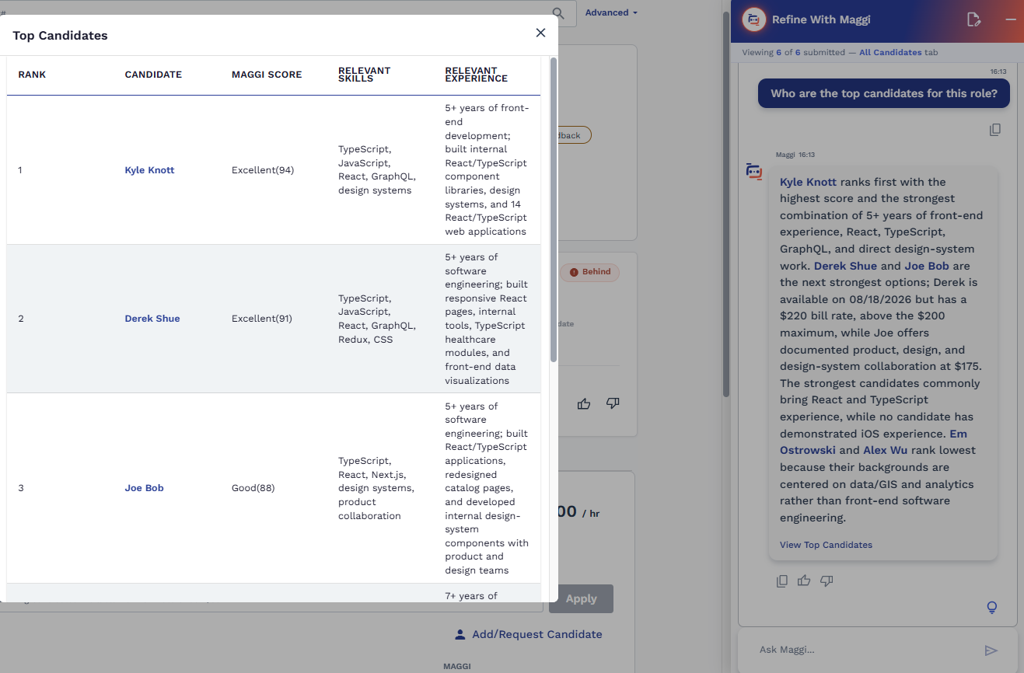
If you have previously used the Candidate Agent chat for the same request, your prior conversation history is retained.
| Maggi Candidate Scoring and Matching | If the client organization has the Maggi Candidate Agent enabled, an AI generated insight and score for the candidate. See Maggi Candidate Agent. Note: You can opt out of using the Candidate Agent to score the quality of the candidate. Opting out of the scoring does not use the candidate's data in the system (Use Maggi to Score and Refine Candidate=No). If opted out, the score column reflects this. This action must be done when submitting the profile. |