Configure Docusign Tags
-
From the document's configuration screen, click Configure Tags.
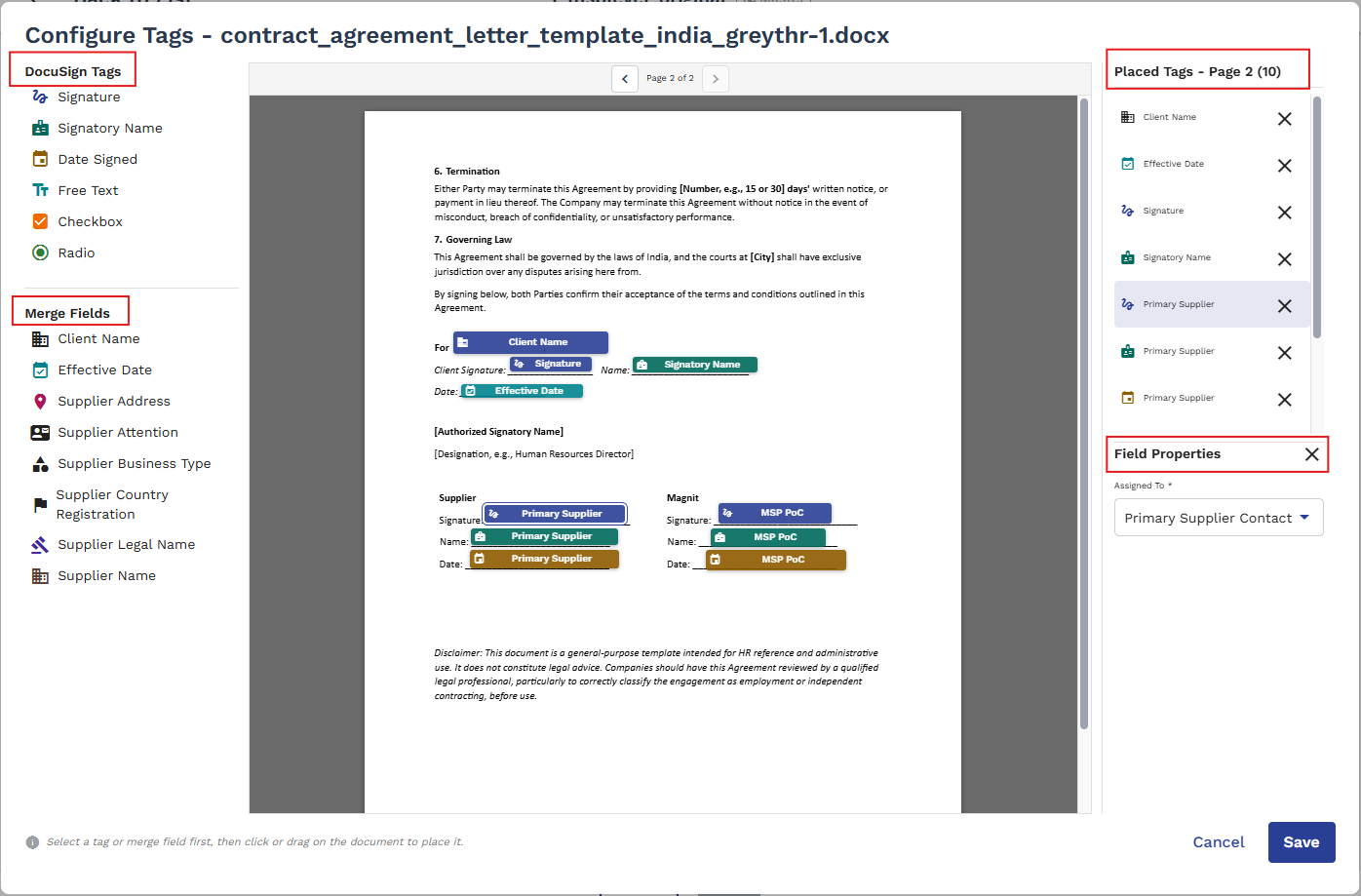
The document opens in a tag-placement view titled Configure Tags - <file name>.
-
From the tag palette, drag the tag type you need onto the document:
- Signature, Signatory Name, Date Signed - standard DocuSign fields.
- Free Text, Checkbox, Radio - fields the signer fills in or selects during signing.
- Merge Fields (for example Client Name, Supplier Name, Supplier Address, Effective Date) - auto-filled by the system; these are not assigned to a signatory.
-
For every tag you place, other than a Merge Field, use the Assigned To drop
down to pick which signatory it belongs to, for example Primary Supplier,
Other Supplier1, Client Team1, MSP PoC, or MSP
Signer1.
This field is marked with an asterisk (*) because it is required for every tag type except Merge Fields.
-
Review the Placed Tags panel on the right.
It lists everything you have placed on the current page, showing the signatory each tag is assigned to, or (Unassigned) if you have not picked one yet.
-
Click Save.
If any placed tag, other than a Merge Field, still has no signatory assigned, you see: "Please assign a signatory to the placed <tag type> tag before saving." Assign a signatory and save again.
Once tags are configured and signatories are set up, use Send to eSign from the document's menu to send it out. The document's status changes to Pending eSign, and each signatory only sees and can fill in the tags assigned to them in the resulting DocuSign envelope.
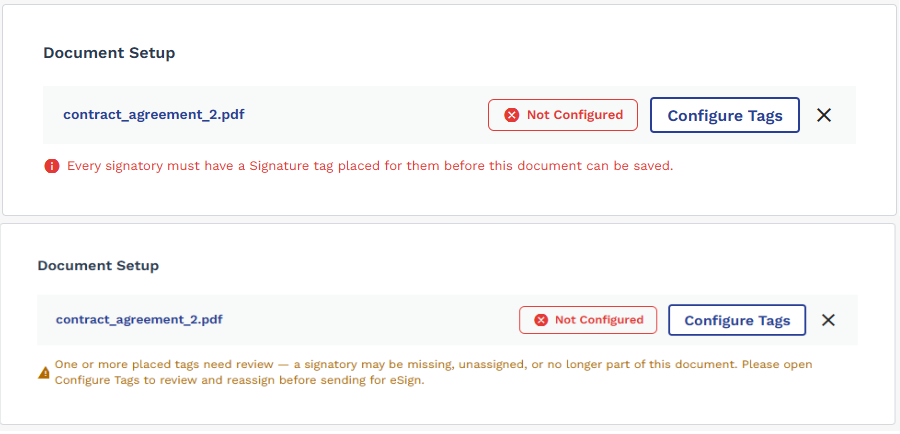
The document list shows a Not Configured badge if tags have not been set up yet, or if something needs your attention, for example a signatory the tags reference is no longer part of the document. Hover over the badge to see the specific message. Once everything matches up, it shows Configured. You cannot send a document for eSign while any placed tag, other than a Merge Field, has no signatory assigned; you are prompted to open Configure Tags first.