Add MSP POC Signatory
Add or Edit the MSP POC
- Navigate to the Configuration in the MSP view.
- Click .
- Use the search, or the right and left arrow icons, to locate the country you want to configure the MSP POC for.
-
In the MSP POC Signatories section header, click
Add if no MSP POC is configured for this country yet, or
Edit to modify the existing one.
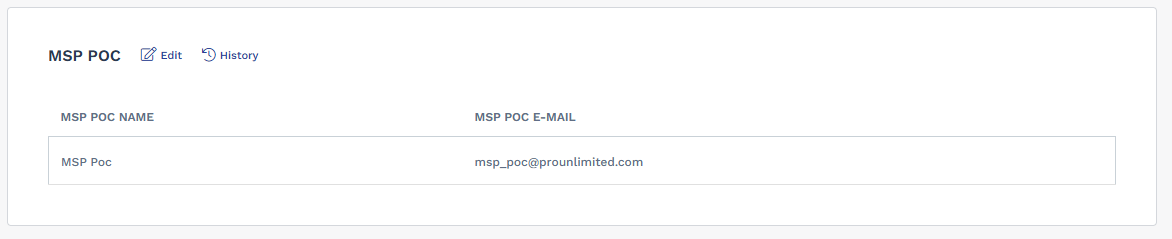
- In the MSP POC Name field, enter the name of the MSP point of contact.
- In the MSP POC E-mail field, enter the point of contact's email address.
- Click Save.
View MSP POC Signatory History
-
Navigate to the Configuration in the
MSP view, click , and
locate the country whose MSP POC Signatories history you want to
review.
History is country-scoped. Changes made under one country, for example United States, do not appear in another country's history, for example Australia.
- In the MSP POC Signatories section header, click History.
-
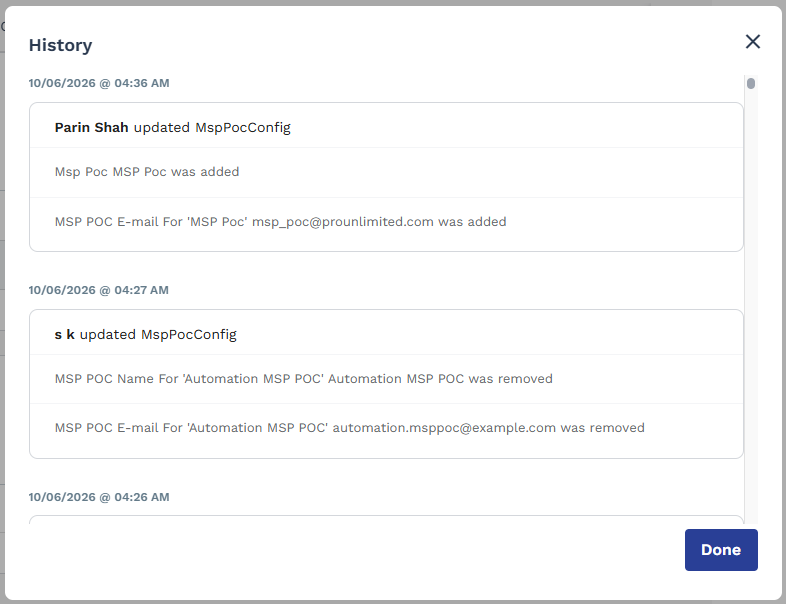
Review the history entries.
Each entry shows the user who made the change, the field changed (MSP POC Name or MSP POC E-mail), the old and new value, and the date and time of the change, for every added, updated, or removed MSP POC entry.
- Click Done to close the dialog.