SOW Template (New): Content Types
SOW Template (New) is the Wand2 rebuild of SOW document template creation. It lets an MSP Administrator create and maintain reusable SOW templates at the client level, merge template content with data from a PROJECT-type requisition to generate a working SOW document, route the document through a collaborative redlining process, and once approved, collect electronic signatures from MSP, Supplier, and Client stakeholders through Adobe Sign.
Prior to this feature, SOW template creation relied entirely on a single free-form text editor (see Configure an SOW Document Template), which required manually building and formatting every section, table, and list. Content Types address this by providing predefined, structured content blocks that can be added to a Cover Page or Page Section.
Enabling the Feature
A Client Administrator must:
- Enable the SOW Template setting under (
enableSowTemplateNewin Wand2). This displays the new SOW Template option under the Project menu. - Ensure the Project requisition type is enabled. SOW templates apply only to PROJECT-type requisitions.
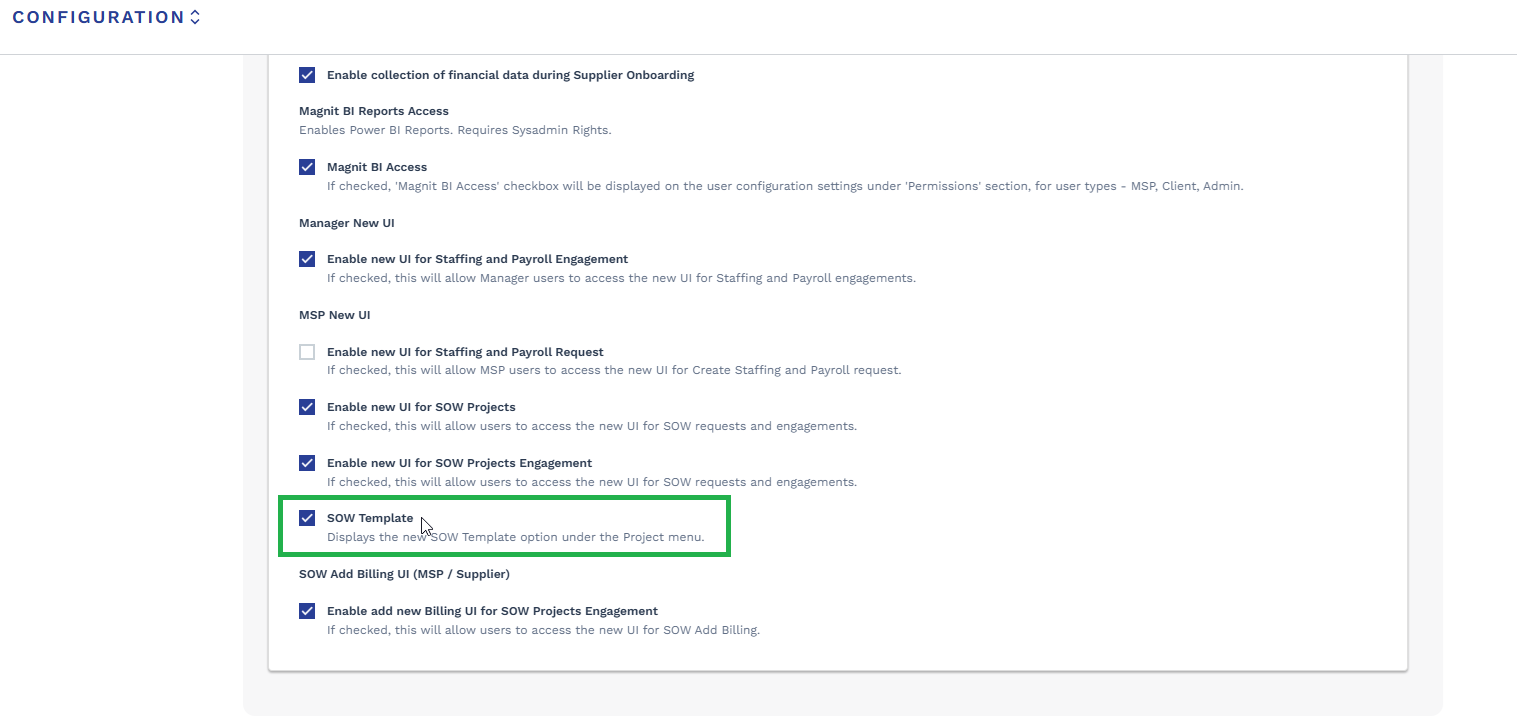
Client Configuration: the SOW Template (New) feature flag under MSP New UI, alongside the related SOW Projects and SOW Add Billing UI flags.
Creating a Template
An MSP Administrator creates a client-specific SOW template with a Template Name, SOW Filename, Language, Job Category scope, and Op Unit scope, matching the legacy template fields (see Configure an SOW Document Template). In addition, Wand2 templates can include a Cover Page and any number of reorderable Page Sections, each with its own configurable Content Type.
Supported content types:
- Text Only
- List Labeled
- Scope of Work
- Table - Milestone with Amount
- Table - Statement of Work Summary
- Table - Customer Location Information
- Numbered List
- Table - Milestones (Without Amounts)

Create SOW Document Template: template details, Cover Page content type, and the Content Type selector for a Page Section.
Document Generation, Redlining, and E-Signature
When a PROJECT requisition requires an SOW, the template content is merged with the requisition data to generate a working SOW document. In the generated document, open the SOW Document tab and use Redline Participants to add the required Manager and Service Provider participants. The resulting participant list confirms who is included before the redlining session starts.
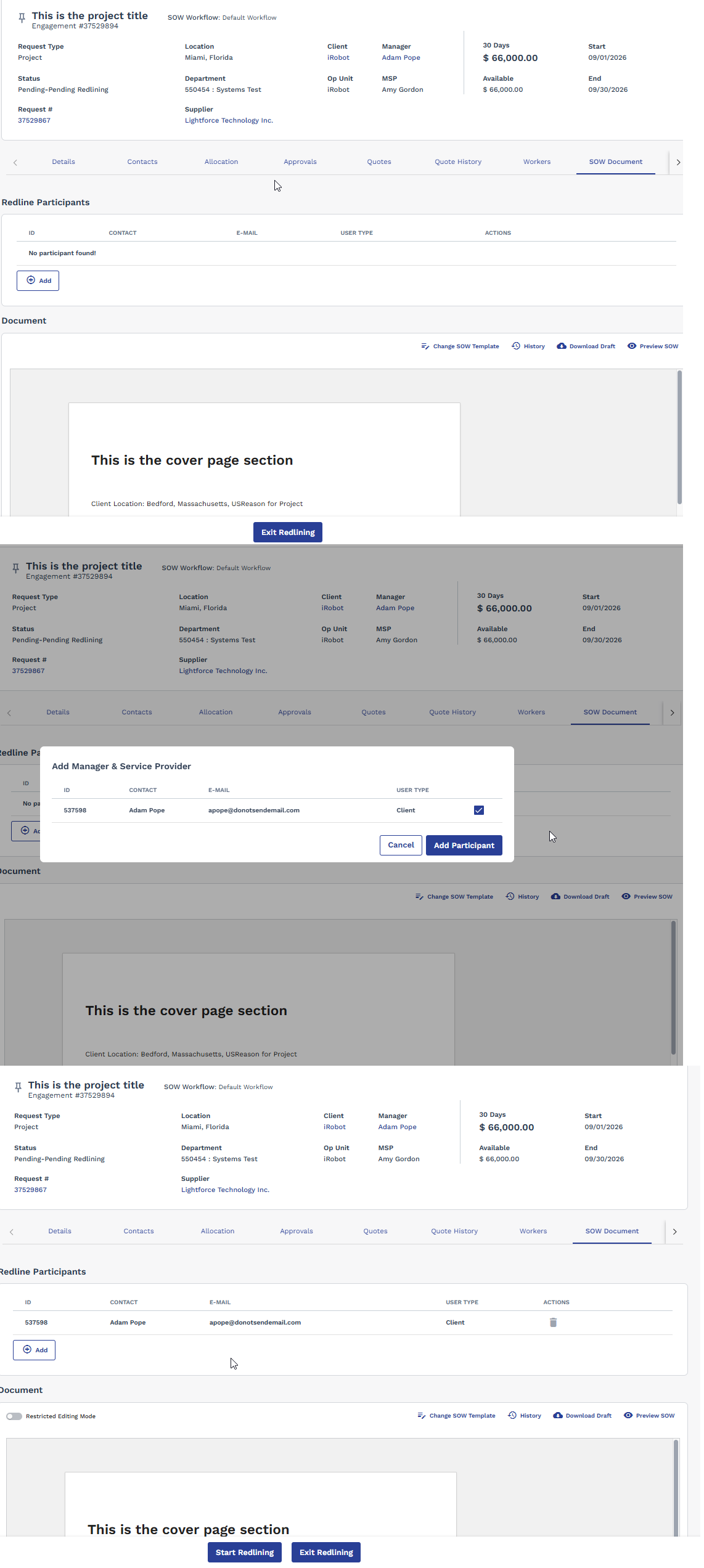
SOW Document tab: adding a Manager/Service Provider redline participant, and the resulting Redline Participants list.
Once the participants are in place, the document can enter the collaborative redlining workflow, where users edit the generated contract, pause/resume the session as needed, and then complete the negotiation before routing the SOW for e-signature. For the detailed Wand2 steps, see SOW Template (New): Redlining and E-Signature in the Manager guide.
End-to-end flow: Create SOW Template > Create Project Requisition > Generate SOW Document > Add Redline Participants > Start Redlining > Edit/Negotiate Document > Complete Redlining > Route for E-Sign > Adobe Sign Workflow > Finalize > Engagement Status = Filled.