Daily Limit Expense Validation (Meals)
Each meal expense type (Breakfast, Lunch, Dinner, Snack) can already have its own spending limit. Daily Limit adds one more check on top of that: it adds up the total of all meal expenses submitted for the same engagement, worker, currency, country, and day, and compares that total against a configured threshold. This closes a gap where a worker could stay under each individual meal limit but still spend more than intended for the day by splitting the cost across several smaller entries.
As with other expense validation rules (see Expense Category), a Daily Limit rule that is exceeded produces one of two results, depending on the configured Validation Scenario:
- Red Flag - An Attention warning is shown. The worker can acknowledge the message and still submit. The expense that pushed the day's total over the limit is flagged for additional review.
- Hard Stop - A Reimbursement Policy Violation error blocks submission until the amount, date, or category is changed.
Configuring a Daily Limit Rule
You configure Daily Limit the same way as other expense validation rules, from :
- Click into Edit Mode.
- Select Meals as the Expense Category.
- In the Expense Type drop-down, select Daily Limit.
- Fill in the rule fields (see the table below), then click Save.
| Field | What it means | Notes |
|---|---|---|
| Threshold | The maximum combined daily meal spend allowed. | Same behavior as other Meals rules. |
| Currency / Country | Scopes which expenses this threshold applies to. | Same behavior as other Meals rules. |
| Validation Scenario | Red Flag (warn) or Hard Stop (block). | Choose based on your organization's policy. |
| Customized Warning Message | Optional extra text shown to users along with the standard message. | Same behavior as other Meals rules. |
| Effective Date / End Date | When this rule is active. | Same behavior as other Meals rules. |
| Justification | Free-text note on why the rule was set or changed. | Same behavior as other Meals rules. |
| Active | Turns the rule on or off. | Same behavior as other Meals rules. |
| Receipt Required | Not applicable. | Automatically unchecked and disabled - Daily Limit is not a single receipt-backed expense. |
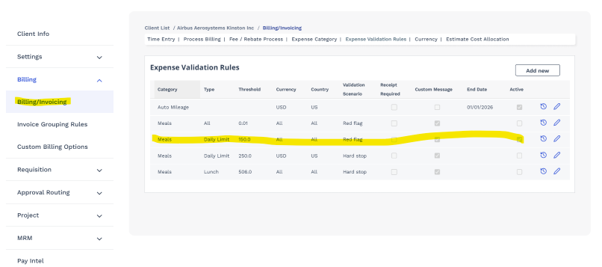
Expense Validation Rules list showing a Meals / Daily Limit rule (Threshold 150, Currency ALL, Country ALL, Validation Scenario = Red Flag).
Reviewing Flagged Expenses
The same Red Flag / Hard Stop behavior applies when an MSP Admin submits or edits an expense on a worker's behalf. For example, editing a flagged expense still shows the warning:
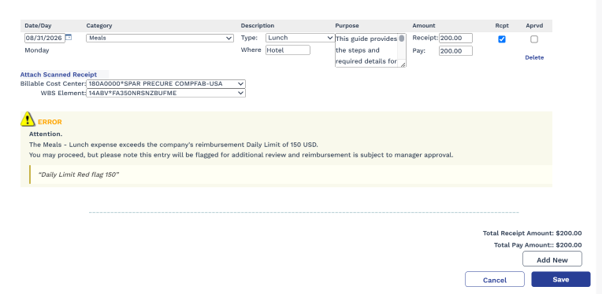
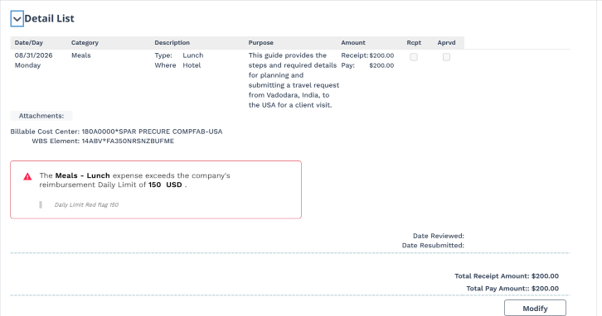
You'll see a Red Flag icon on . You'll see the warning message (standard text plus any custom text configured) on:
- Engagement Details > Billing > New Billing Item
- Billing > New Billing Item
- Engagement Details > Billing > Details
- Billing > Details
- Billing > Approve Billing > Billing Approval List > Details
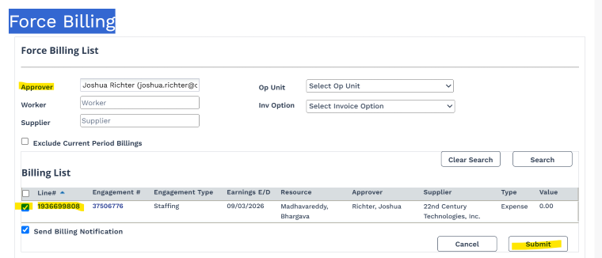
Once reviewed, the expense proceeds through the normal billing process (for example, Force Billing) like any other expense:
Related Persona Guidance
- Workers: see Add an Expense for what a worker sees when submitting a meal expense.
- Managers: see Time + Billing Page for reviewing flagged expenses.
- Suppliers: see Confirm Expenses for confirming flagged expenses on behalf of a worker.