Modify Project Billing
Update an existing project billing item using the Modify Billing popup. It follows the same step structure as Add Billing, but opens pre-populated with the existing billing item's data.
Note:
Detail
rows that are Approved (outside of MSP/VMS) or
Rejected and Invoiced are read-only and cannot be
edited.
- Navigate to the Billing GenInfo page, in MSP.
-
In the Detail
List section, click
 and modify the billing item details.
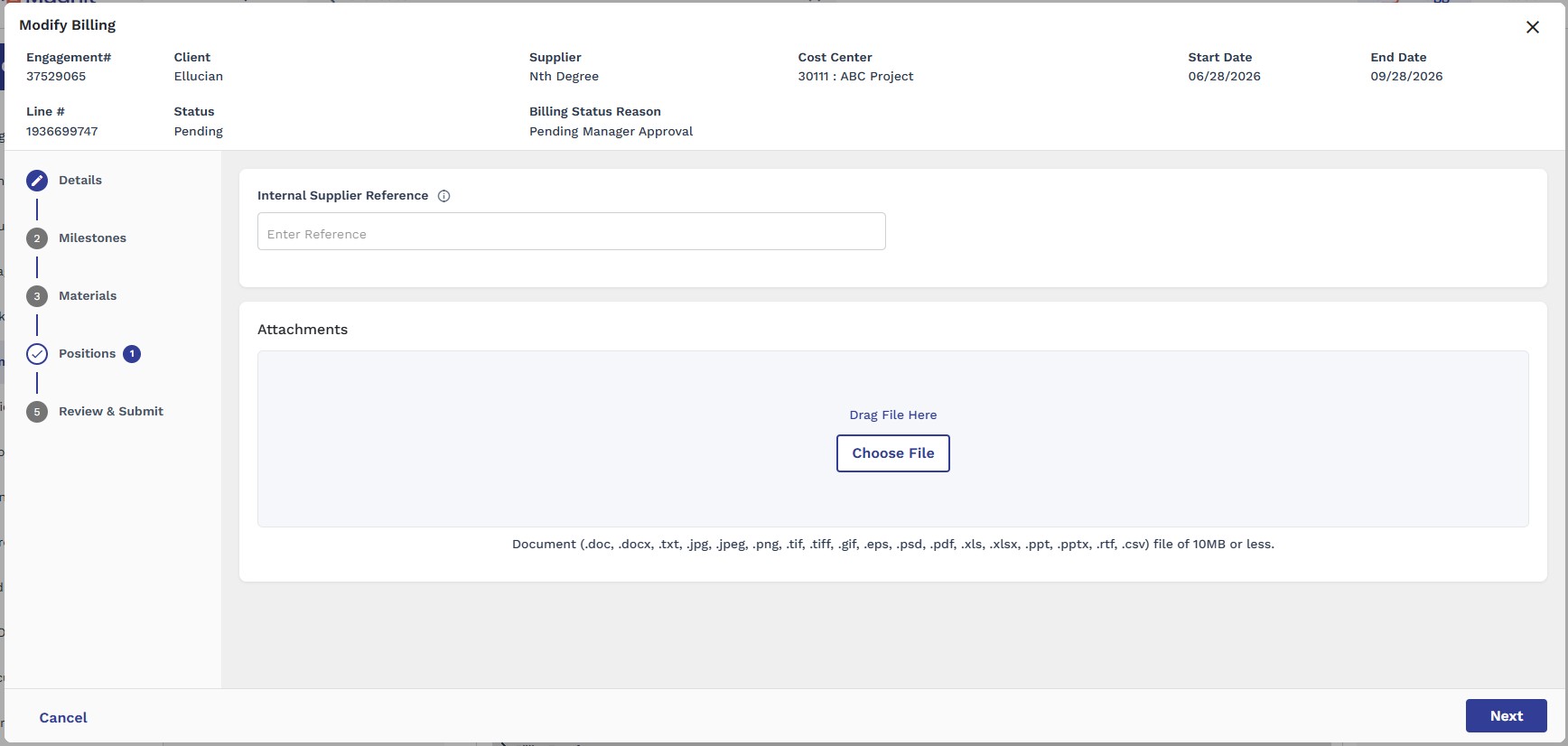
- The Modify Billing popup opens on the Details step. In addition to the Engagement#, Client, Supplier, Cost Center, Start Date, and End Date, review the billing item's Line #, Status, and Billing Status Reason shown at the top of the popup.
- Update the Internal Supplier Reference if needed.
-
Optionally add, replace, or review
Attachments.
Note:A checkmark badge on a step in the left-hand tracker (for example, Positions) indicates that step already has saved data from the original billing item.
- Click Next and repeat for the Milestones, Materials, and Positions steps as needed, updating the Date, Billing Notes, or existing line items.
- Click Next to reach the Review & Submit step.
- Review every section. Click the pencil icon next to any section heading to jump back and make further edits before saving.
- Click Submit Billing to save your changes.